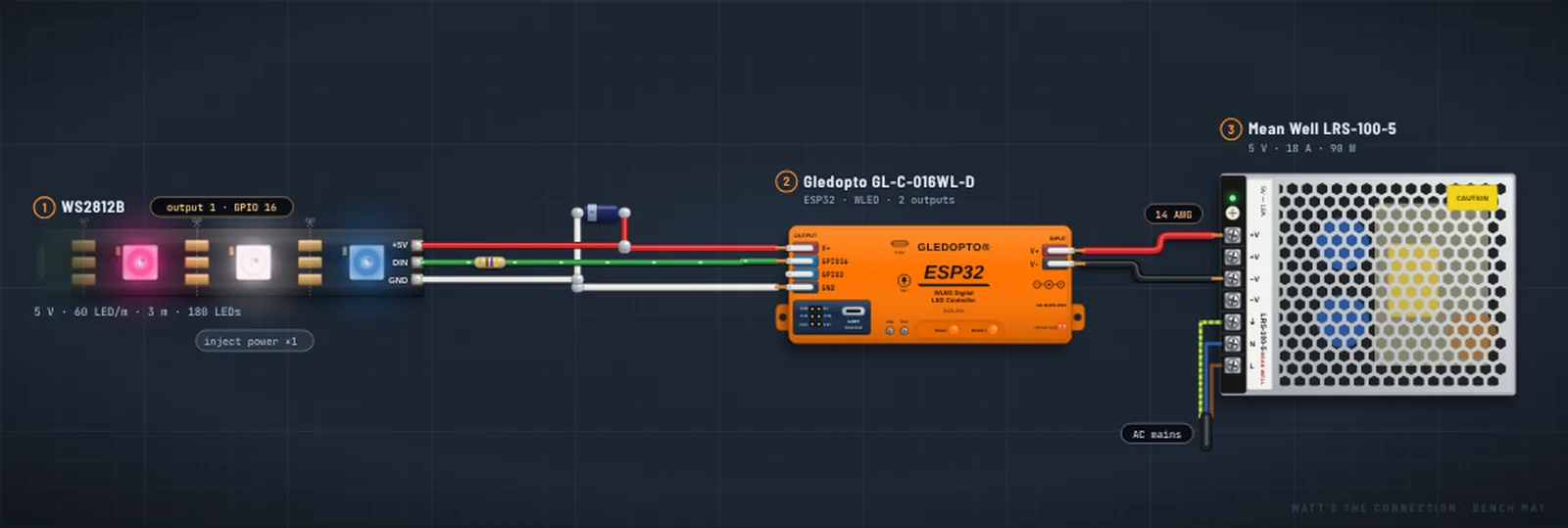
LED strip power injection: when you need it and how to wire it
If the far end of your strip looks dim, or white fades to yellow and orange along the run, the strip isn’t broken. It’s running out of voltage. Power injection fixes it by feeding power in at more than one point.
Feed power into a standard 60/m strip again partway along: about every 2 m (6.6 ft) at 5 V, every 5 m (16.4 ft) at 12 V and every 10 m (32.8 ft) at 24 V. Dense and RGBW strips need feeds closer together. Run a fused red and black pair from the power supply to each point, match + to + and − to −, and keep one shared ground. The data wire only goes in at the start.
Why the far end dims
The copper tracks inside an LED strip are thin. Every meter of strip loses a little voltage, and the more current flows, the more it loses, so the last LEDs get less than the first. At full white the drop is at its worst: the blue and green LEDs fade first, so white turns yellow, then orange.
A 5 V strip has the least room to lose: a drop of 1 V is 20% of its supply. That’s why 5 V strips need injection soonest, and why 12 V and 24 V strips go further on one feed.
How often to inject
| Strip | 2 m6.6 ft | 3 m9.8 ft | 5 m16.4 ft | 10 m32.8 ft | 15 m49.2 ft | 20 m65.6 ft |
|---|---|---|---|---|---|---|
| 5 V, 60/mWS2812B · every ~2 m | – | 1 | 2 | 5 | 7 | 10 |
| 12 V, 60/mWS2815 · every ~5 m | – | – | – | 2 | 3 | 4 |
| 24 V, 60/mWS2811 · every ~10 m | – | – | – | – | 1 | 2 |
| 5 V RGBW, 60/mSK6812 RGBW · every ~1.5 m | 1 | 2 | 3 | 6 | 10 | 13 |
| 5 V, 144/mWS2812B · every ~0.8 m | 2 | 3 | 6 | 12 | 18 | 25 |
| 12 V, 144/mWS2815 · every ~2 m | – | 1 | 2 | 5 | 7 | 10 |
Extra feeds beyond the one at the start, for a single continuous run. “–” means one feed at the start is enough. Spacing shrinks as the current per meter grows, so dense and RGBW strips need feeds sooner.
Treat these as a starting point. To check a build, set it to full white and measure the voltage across the last LEDs’ own + and − pads with a multimeter. If it’s more than about 10% below the supply’s voltage, add a feed.
How to wire it
- Unplug the supply before you cut or solder anything.
- Find the input end. Arrows printed on the strip point away from the input: data goes into the DIN pad at that end (and clock into CI on APA102 strips).
- Pick the points. Space the extra feeds evenly along the run, with the last one at or near the far end. Most strips have a spare power pair at each end, meant for this; partway along, solder to the + and − pads at a cut mark, without cutting the strip.
- Match + to + and − to −. Go by the pad labels printed on the strip, not wire colors: spare leads are often red and white, and colors vary between makers. A reversed feed is a short circuit through the strip. Check with a multimeter before you power it.
- Run each feed from the power supply. Use a red (+) and black (−) pair for every point. Either run each pair from the supply’s terminals, or use a thick main wire sized for the total current, fused at the supply for that total, with a fused tap to each point. What doesn’t work is pushing all the current through the strip itself, or through thin wire. The feed at the start often comes through the controller, as usual.
- Fuse each feed near the supply (or at its tap). A feed in the middle supplies the strip on both sides, so it carries about twice what an end feed does: with the feeds evenly spaced, a middle feed carries about the strip’s full-white current ÷ the number of gaps between feeds, and an end feed about half that. Fuse each at about 1.25× its current, rounded up to a standard blade fuse, in a holder rated for the fuse, and use wire that can carry the fuse’s rating.
- Leave the data wire alone. Data travels along the strip by itself. Nothing connects to the data line at injection points.
- Share one ground. The supply’s −, the controller’s GND and the strip’s GND all connect together. Without a common ground the data signal has nothing to refer to, and LEDs flicker or show random colors.
- Test it. Power on at low brightness first, then run full white for 10–15 minutes. The far end should match the start, and no wire, fuse holder or connector should feel hot. Insulate any spare bare leads.
Feeding both ends
For a single 12 V reel or a short 5 V run, feeding the start and the far end is the simplest form of injection. Longer runs need feeds in between as well. A strip can only take so much current in at one spot: QuinLED’s guide plans for at most about 4 A into an end and about 8 A into a middle point (worked out at 50% white). See QuinLED’s power injection guide for the detail.
Wire for the injection leads
Each lead carries the current for its stretch of strip, so it can often be thinner than a single feed would need. These are the planner’s sizes for runs of a few meters, by full-white current:
| Full-white current through the lead | Copper wire | Metric |
|---|---|---|
| up to 2.5 A | 20–22 AWG | 0.5 mm² |
| 2.5–6 A | 18 AWG | 1 mm² |
| 6–10 A | 16 AWG | 1.5 mm² |
| 10–18 A | 14 AWG | 2.5 mm² |
Longer leads lose voltage too, and at 5 V half a volt is a lot. If a feed has to travel several meters, go one size thicker. Use copper wire (not “CCA”); silicone insulation is easier to route and handles heat better.
Using a second power supply
Very long builds sometimes use a supply for each section. That works if:
- each section’s + is fed by one supply only: at the joint between sections, cut or leave unconnected only the + line, and keep ground and data connected,
- all the grounds are connected together,
- the supplies are the same voltage, and
- they switch on together (one switch or one power strip), so data never runs into a section that has no power.
Never connect the + outputs of two power supplies together. They fight each other and can overheat.
Common mistakes
- A reversed feed. Wire colors on strips vary; follow the + and − printed on the pads.
- Feeding power through the controller only. A controller output is rated for a set current. Long or dense strips can draw more, so feed the extra current straight from the supply into the strip.
- Thin wire for the feeds. Wire that’s too thin drops voltage itself and gets warm, undoing the injection.
- No fuses. A big supply can push a lot of current into a short. A fuse on each red lead keeps a fault small.
- Connecting data at an injection point. Only power goes in there.
- Grounds not shared between supply, controller and strip.
Examples
Both are complete builds in the planner. It flags when a run needs injection and counts the points for you.
3 m of 5 V WS2812B
Past 2 m on 5 V, so one extra feed: run a second red/black pair from the supply to the far end. It can draw 10.8 A at full white. The planner counts that whole current against the controller output it starts from, so it caps brightness at 80% to stay inside the output’s rating.
10 m of 12 V WS2815 on one output
Two extra feeds, about every 5 m. At full white it can draw 15 A. The planner counts it all against one controller output (rated 10 A), so it caps brightness at 65%; splitting it into two 5 m runs on two outputs avoids the cap.